Matter Protocol Keyboards: Unified Smart Home
By Maya Chen • 23rd Mar
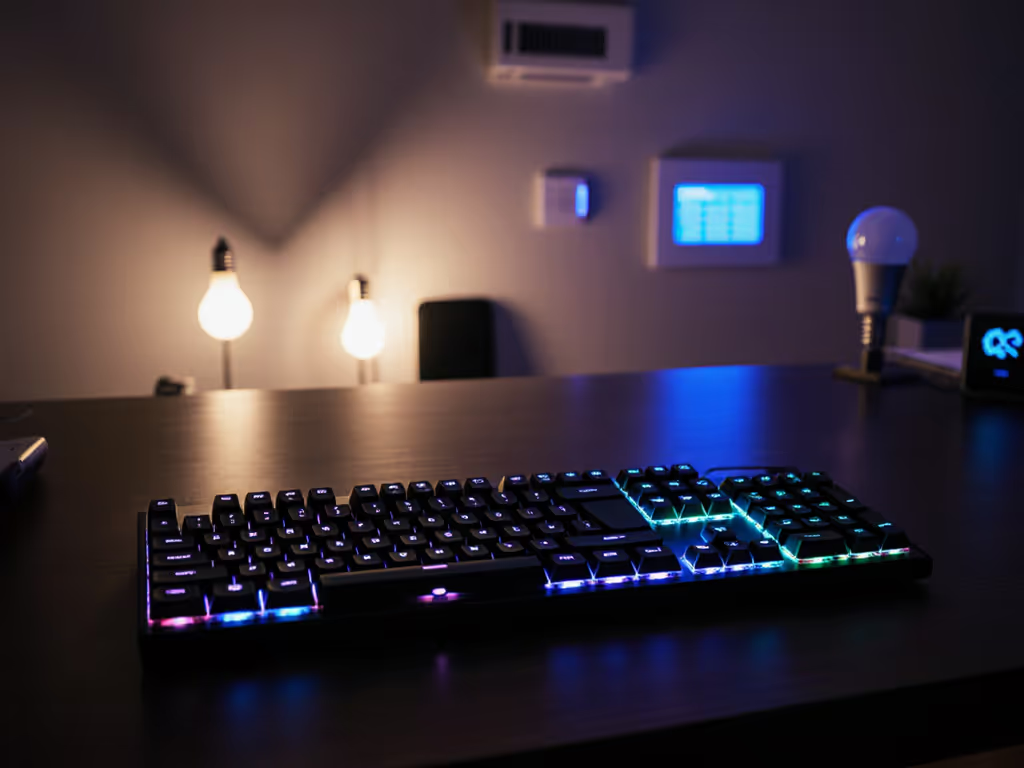
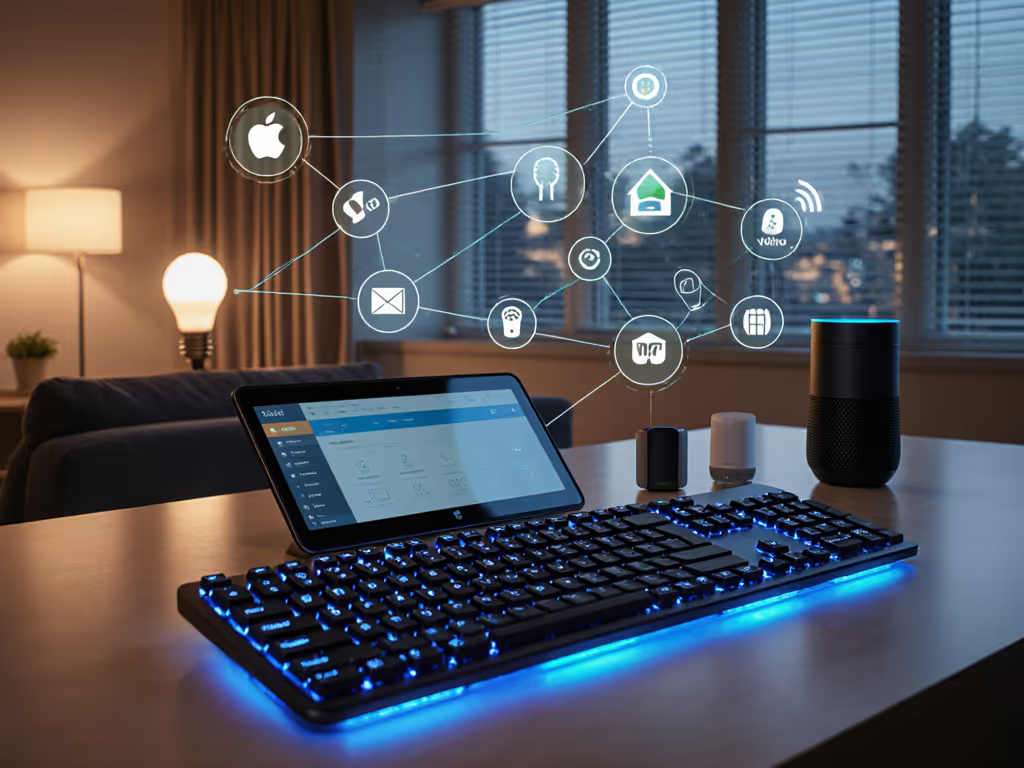
A matter protocol keyboard bridges your computer workspace and smart home ecosystem through a single input device, eliminating the friction of juggling separate controllers for lighting, climate, and scenes. Unlike the fragmented world of isolated wireless standards, smart home keyboard integration via Matter offers cross-platform consistency (one device, multiple hubs, no pairing roulette). For an overview of practical setups and workflows, see our smart home keyboard control guide.
But before you assume this is purely cosmetic convenience, understand what's really at stake: connectivity reliability under real-world RF noise, predictable reconnection times, and the ability to trust automation from your desk without watching logs.
What Is Matter in the Context of Keyboard Devices?
What makes a keyboard "Matter-certified"?
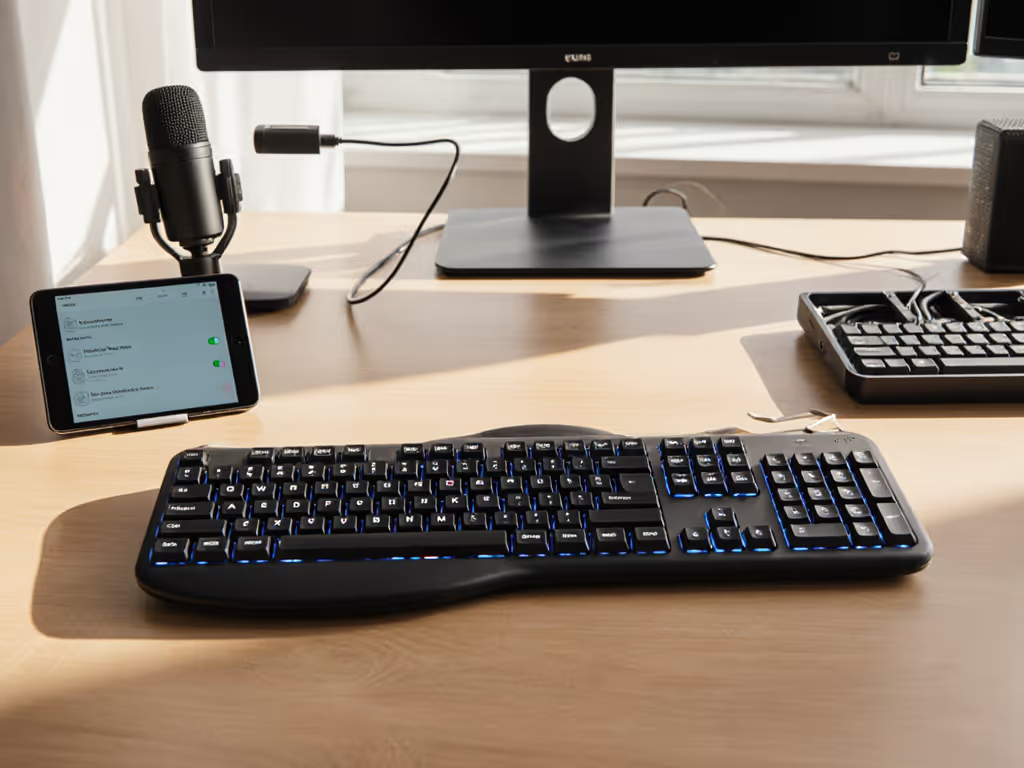
Matter-enabled keyboards aren't regular input devices that happen to have Wi-Fi inside them. They're devices running the Matter protocol (a unified language for smart home communication). A Matter keyboard implements Wi-Fi connectivity (typically 2.4 GHz only, not 5 GHz) as its communication path to your Matter hub (Apple Home, Home Assistant, SmartThings, or Google Home), separate from the USB cable that connects to your computer. The keyboard itself acts as a Matter button controller, allowing you to assign function keys to trigger scenes, automations, or individual device commands on your smart home network.
The distinction is critical: you're not using Wi-Fi to type. Your keystrokes go through the wired USB connection to your computer. The Wi-Fi radio exists exclusively to talk to your smart home.
Why Would a Keyboard Need Wi-Fi at All?
Doesn't a keyboard just need to talk to one computer?
Traditionally, yes. But consider the 8+ hours you spend at your desk (most of that time, you're inches from devices you could control with your fingertips). A Matter keyboard eliminates the mental context switch of reaching for a phone, opening an app, and tapping a light scene. Press F1 with the Matter key held: curtains open. F2: lights on. F3: coffee machine starts.
This only works if the keyboard can reach your smart home hub reliably. Wi-Fi penetrates walls and connects directly to infrastructure most homes already have. The protocol is designed for devices that don't move, making Wi-Fi a pragmatic choice over battery-draining Bluetooth.
How Does Matter Solve the "Fragmentation" Problem?
I have Apple Home and a Google Home speaker. Can one keyboard work with both?
Yes, that's Matter's defining advantage. Older isolated protocols forced you into an ecosystem: Philips Hue lights needed the Hue app, Nanoleaf was separate, and your ecobee thermostat was another silo. Matter replaces that with a unified wireless standard that allows a single device to present itself to multiple platforms simultaneously.
When you add a Matter keyboard to your home, you commission it once through a QR code scan, and it becomes accessible to every Matter hub on your network (whether that's HomeKit, Google Home, Home Assistant, or SmartThings). You don't rebuy the keyboard for each ecosystem. This is called multi-admin support, and it's the first time a physical object can work truly cross-platform without proprietary workarounds. For a deeper technical dive into commissioning and cross-platform behavior, read our Matter keyboards guide.
Practically: each hub can see the same 12 function keys, and you configure which actions each key triggers in each platform's interface. A single key press travels locally through your Wi-Fi network to whichever hub is listening.
What About Security? Is a Keyboard Transmitting Everything Over Wi-Fi?
Does my keyboard log what I type? Is it sending data to the cloud?
No, Matter protocol keyboards never send keystrokes over Wi-Fi. Your typing data stays on the USB cable to your computer. The Wi-Fi connection is used exclusively for the Matter control function (pressing F1+Matter to trigger a scene). All Matter communication is encrypted and operates locally by design; automations run on your Matter hub or local network, not in the cloud.
Unlike older cloud-dependent smart home setups, Matter enforces local-first communication. If your internet drops, your keyboard can still trigger automations running on a local hub like Home Assistant or an Apple HomePod. This also means your smart home behavior (which scenes you run, when you run them) stays within your network. If you're evaluating what non-keystroke data keyboards may collect, start with our wireless keyboard data privacy explainer.
How Do Function Keys Map to Smart Devices?
Can I customize which key controls which light?
Yes, and the depth of customization depends on your smart home platform. A Matter keyboard typically provides 12 programmable function keys (F1- F12) plus a dedicated Matter key that acts as a modifier. In Apple Home, for example, each function key can be assigned multiple actions triggered by short press, long press, or double press. Home Assistant and SmartThings expose similar flexibility, allowing you to assign individual devices, scene triggers, or multi-step automations to each key.
Configuration happens in your smart home app's web interface or dedicated commissioning UI, not on the keyboard itself. Once set, the mappings persist locally on the keyboard's firmware and execute through your Matter hub.
What About Reconnection Speed Under RF Congestion?
I live in an apartment with 20+ Wi-Fi networks nearby. Will the keyboard stay connected?
This is where methodical testing matters more than marketing copy. Matter over Wi-Fi operates on the 2.4 GHz band (the same crowded spectrum shared by microwaves, Bluetooth, baby monitors, and every neighbor's network). The protocol itself includes mesh-capable features and local retry logic, but raw throughput and interference resilience depend on your router, placement, and hub design.
Because a Matter keyboard is stationary (unlike a phone you carry around), signal should remain stable once commissioned. However, Wi-Fi roaming between access points, interference from neighboring SSIDs, or RF bursts from household appliances can cause temporary glitches in reconnection or command delivery. To harden performance in dense offices or apartments, follow our RF congestion stability checklist. The keyboard won't lose connectivity for routine smart home presses, but you'll want to test responsiveness in your specific RF environment before betting critical automations on it.
One advantage: if a command fails, you'll see immediate feedback in your smart home app. Numbers beat adjectives (real tests under your home's actual interference conditions beat spec-sheet claims about "reliability").
Cross-Platform Smart Home: What's the Real Cost?
If my keyboard works with both Apple Home and Google Home, do I have to maintain automations twice?
Partially. Once commissioned to Matter, the keyboard itself (the physical device) is visible to all hubs. But the automations you assign to each key are platform-specific. If you want F1 to trigger the same lighting scene in both HomeKit and Google Home, you'll need to set it up in both apps.
This is different from automation duplication. You're not copying large workflows. You're assigning the same 12 keys to similar actions across platforms. For most users, this is manageable; for complex setups with dozens of automations, it can feel repetitive.
The real value emerges when you own devices from multiple brands: a Nanoleaf light, an ecobee thermostat, and an Aqara lock, all now visible in one keyboard's control scheme without separate apps.
What's the Setup Process Really Like?
How long does it take to get a Matter keyboard online and working?
Matter was designed to simplify onboarding. You scan the keyboard's QR code with your smart home app, and the device is securely added to your Matter fabric (no manual credential entry or complex pairing). From there, you open your smart home platform's configuration interface and assign actions to each function key.
For a fresh Matter setup with an existing hub, expect 5-10 minutes. If you're setting up your first Matter ecosystem, you'll spend time choosing and configuring a hub (HomePod mini, Home Assistant instance, or SmartThings hub), which takes longer but is a one-time step.
The advantage over Bluetooth or proprietary 2.4 GHz dongles: no driver installation, no separate software, no firmware update tool. Your smart home app is the configuration interface.
When Should You Actually Use a Matter Keyboard?
Is this just a novelty, or does it solve a real workflow problem?
It's genuinely useful for remote workers, coders, and gamers who spend prolonged time at one desk and want to control environment without breaking focus. A single keypress to dim lights, adjust the thermostat, or open smart shades beats reaching for your phone.
It's less relevant if you move frequently between desks, if your smart home setup is minimal (2-3 devices), or if you already use voice commands comfortably. If voice is your primary control surface, compare options in our voice control keyboards roundup. It also requires that you've already adopted Matter-compatible devices and hubs; a keyboard alone won't bridge you to older Zigbee or Bluetooth-only hardware.
The real unlock is having a unified control surface (one device, multiple ecosystems, zero app juggling) in a form factor you're already touching 8+ hours a day.
What Should You Do Next?
If you have a cross-platform smart home with at least 5-10 Matter devices and an existing Matter hub, audit your keyboard setup: Are you using ergonomic or wireless models that don't leave bandwidth for additional features? Matter keyboards are wired for input but wireless for control, so they don't replace your connectivity. Test one in your actual RF environment (not a marketing demo in a quiet room) and measure reconnection latency under load. If you live in an RF-congested area (apartments, offices), enable channel scanning on your router and confirm your keyboard's Wi-Fi band isn't overlapping with your primary devices.
For users with minimal smart home ecosystems or those seeking maximum mobility, focus first on ensuring your current keyboard and hubs stay reliably connected. A Matter keyboard adds value only after your foundation is stable. Start by mapping your current device inventory, confirming Matter compatibility across your hubs, and then decide if 12 programmable function keys justify a keyboard refresh.
The protocol solves fragmentation. Your environment determines whether the solution fits.
Related Articles