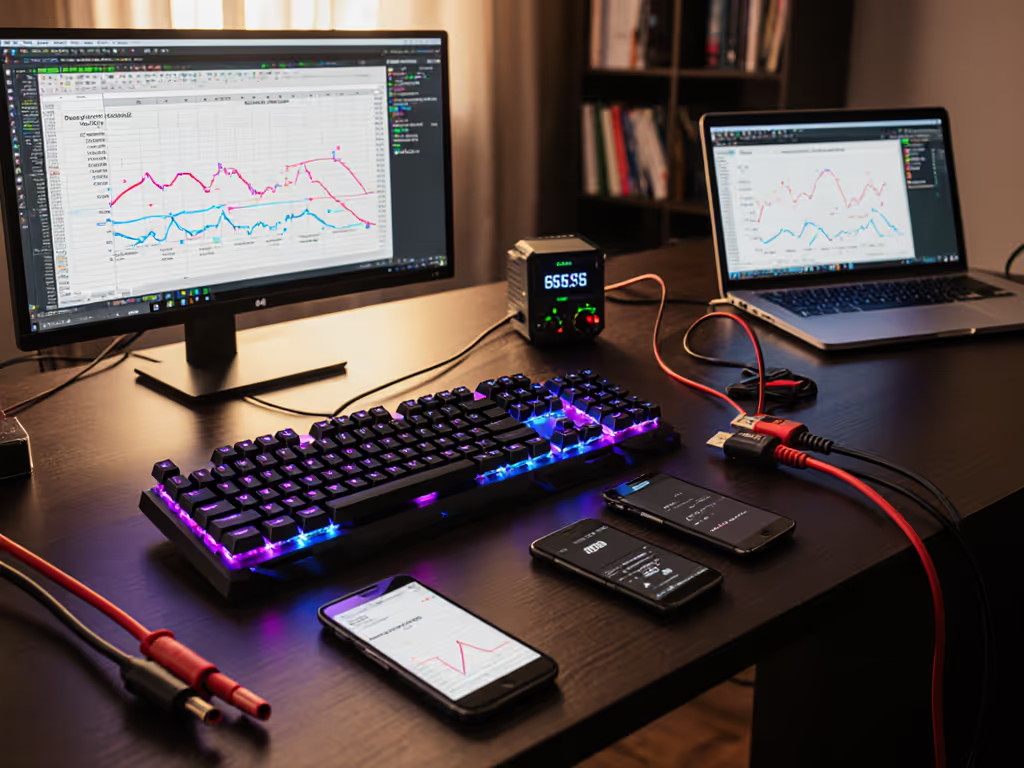
Optimize Wireless Keyboard Latency: Pro Techniques
By Viktor Petrov • 31st Mar
You've invested in a wireless keyboard. It pairs instantly, looks clean on your desk, and promises weeks of battery life. But under load (mid-game, during a live video call, or when you're in flow on deadline work), you feel it: that imperceptible but unmistakable hesitation between keystroke and screen response. That's wireless keyboard latency optimization calling.
Latency isn't purely theoretical. It's the gap between your finger and the system's recognition of your intent. For a deeper primer on causes and specs, see keyboard latency explained. For most typing, that gap is invisible. For competitive gaming, coding sprints, or precision audio production work, it matters enough to derail focus. The good news: measured optimization exists, and it doesn't require replacing hardware or surrendering battery life to proprietary polling regimens.
Understanding Latency Across Connection Types
Before optimizing, you need to know what you're measuring. Latency comes in flavors, and each wireless protocol has its own profile.
Wired keyboards set the baseline: 1-4 milliseconds end-to-end, with most modern mechanical boards polling at 1000Hz (1ms intervals)[3]. They're the control, the zero-interference reference.
2.4GHz wireless keyboards have closed that gap dramatically. High-end 2.4GHz models using dedicated dongles deliver 1-5ms latency, nearly indistinguishable from wired in real use[3]. The trade-off: these require a USB receiver and operate on a crowded RF band. If your office or apartment is saturated with Wi-Fi, microwaves, or neighboring 2.4GHz devices, signal interference can spike latency without warning.
Bluetooth keyboards prioritize efficiency over speed. Typical latency ranges 8-20ms depending on OS and device generation[3]. That's fine for email, writing, or casual play, but not for esports or time-sensitive production work. More critically for real-world use: Bluetooth is where wake-delay problems hide. A keyboard in sleep mode can take 1-2 seconds to reconnect to your system, a friction that spec sheets ignore but travelers and remote workers feel every morning.
The practical truth is simple: human reaction time averages 150-250ms[3], so 5ms versus 12ms is imperceptible in casual use. But consistency matters more than the raw number. A keyboard with stable 3ms latency feels more responsive than one that swings between 2ms and 15ms depending on RF conditions.
Hardware Optimization: The Physical Layer
Latency optimization starts where the signal originates: the space between your keyboard and receiver.
Dongle Placement and USB Interference
If you're using a 2.4GHz dongle, position is everything. USB 3.0 ports generate radio frequency interference that directly disrupts 2.4GHz signals[1]. If your receiver sits inches from a USB 3.0 hub or hard drive, move it to a USB 2.0 port on the opposite side of your machine. This single change often cuts latency spikes by 50% or eliminates them entirely[1].
Use a short USB extension cable to place the dongle directly in front of your keyboard, at desk height and unobstructed[1]. This minimizes physical barriers and signal bounce. If you travel frequently (say, juggling a laptop dock, external monitors, and a cable nest in a hotel room), keep a compact 6-inch USB 2.0 extender as part of your kit. Dongle placement discipline has prevented more real-trip latency headaches than any firmware update.
Signal Processing for Keyboards: Distance and Interference
Keep your keyboard within 2 meters of the receiver. Every meter of distance increases signal degradation and potential packet loss, which translates to perceived lag or even brief disconnections[1]. In crowded RF environments (co-working spaces, apartments with 20+ Wi-Fi networks), this discipline is non-negotiable. If your workspace is dense with devices, our RF congestion solutions guide walks through practical fixes.
Check your keyboard's adaptive polling technology settings if available. Some modern wireless boards can shift between 500Hz and 1000Hz polling rates dynamically based on RF conditions. This is a win: it maintains responsiveness when needed and conserves battery during quiet periods. It's the rare feature that serves both performance and endurance.
Software and Driver Optimization
With the hardware foundation set, now tune the software layer.
Polling Rate and Driver Tuning
Ensure your polling rate is set to the highest stable value your system and keyboard support, typically 1000Hz (1ms per sample)[1]. Check your keyboard manufacturer's control software or Windows device settings. A polling rate set to 125Hz versus 1000Hz introduces a hidden 7ms latency gap simply from less-frequent sampling.
This does cost battery. Each polling cycle consumes microwatts. But the math is clear: if your work demands low latency, you're trading runtime for responsiveness. Log this in your charge-cycle math so you know the real cost. A keyboard running 1000Hz polling versus 500Hz may lose 15-25% battery endurance, a trade documented through time-on-desk logs, not spec sheets.
System-Level Tweaks
Disable Windows filter keys, which slow repeat rates to aid accessibility users[5]. If you don't need this feature, turn it off via Settings > Ease of Access > Keyboard. Repeated keystrokes will feel crisper.
RGB and backlighting can introduce system latency, particularly if your keyboard requires constant USB HID polling to update LEDs[4]. If competitive gaming or low-latency audio production is your use case, disable RGB effects entirely or set them to static, non-updating modes. This also improves battery life, a secondary win that aligns charge-cycle math with performance goals.
Update your keyboard drivers and any associated device firmware[1]. Outdated Bluetooth stacks are notorious for high latency and unpredictable reconnection; modern updates often cut wake-delay timers from 2+ seconds to under 500ms, a quality-of-life improvement that matters more than raw bandwidth.
The Battery-Latency Trade-Off
Here's where professional-grade wireless keyboard design reveals its true cost. Low latency isn't free.
A keyboard running 1000Hz polling, RGB effects active, and aggressive Bluetooth reconnect attempts will drain faster than conservative alternatives. For realistic expectations and testing methods, see our wireless keyboard battery life guide. If you're mid-flight or in a remote meeting with no outlet nearby, a 2-week battery claim becomes a 6-day reality if you're not tracking these trades.
Measure this yourself. Use real-trip notes and wake delay timers: test your keyboard under actual work conditions (typing, mouse pauses, sleep cycles) and log the results. A 7-day battery life under gaming settings (1000Hz, RGB on, frequent reconnects) is valuable data that no manufacturer publishes. This is the battery you don't notice, because you've calculated its behavior beforehand and budgeted accordingly.
Multi-Device Switching and Connection Stability
Many wireless keyboards support 2-3 device slots. Switching between Windows desktop, Mac laptop, and iPad involves brief reconnection delays. If your keyboard supports low-latency signal path settings per device, use them: 1000Hz for your gaming/work machine, 500Hz for your tablet or secondary laptop. Each device profile preserves its latency floor without draining the others.
Final Verdict
Wireless keyboard latency optimization is an earned skill, not a spec-sheet game. Here's the hierarchy:
- Use a 2.4GHz dongle over Bluetooth if latency matters to you. 1-5ms is gaming-ready; 8-20ms is for spreadsheets[3].
- Position your dongle in a USB 2.0 port, away from USB 3.0 interference, and within arm's reach of your keyboard. This single move eliminates most environmental latency spikes[1].
- Set polling to 1000Hz and accept the battery cost. Time-on-desk logs will show you exactly how many extra charging cycles you're trading for responsiveness.
- Disable RGB and non-essential firmware features unless you need them. Latency and battery life both improve[4].
- Test under real conditions. One flight or working session with live-latency monitoring beats any manufacturer spec. Bring a USB extension cable and a charging dock for travel. These tools cost ounces and prevent hours of frustration when your keyboard's real behavior diverges from its promise.
Latency optimization succeeds when it's invisible: when your keyboard responds as expected, reconnects instantly after sleep, and lasts through your workday without anxiety. That requires measurement, trade-off awareness, and the humility to test rather than trust. Charge less, do more: latency conquered through data, not guesswork.
Related Articles