VR Development Keyboards: Tested for Stability & Speed
By Maya Chen • 8th Apr
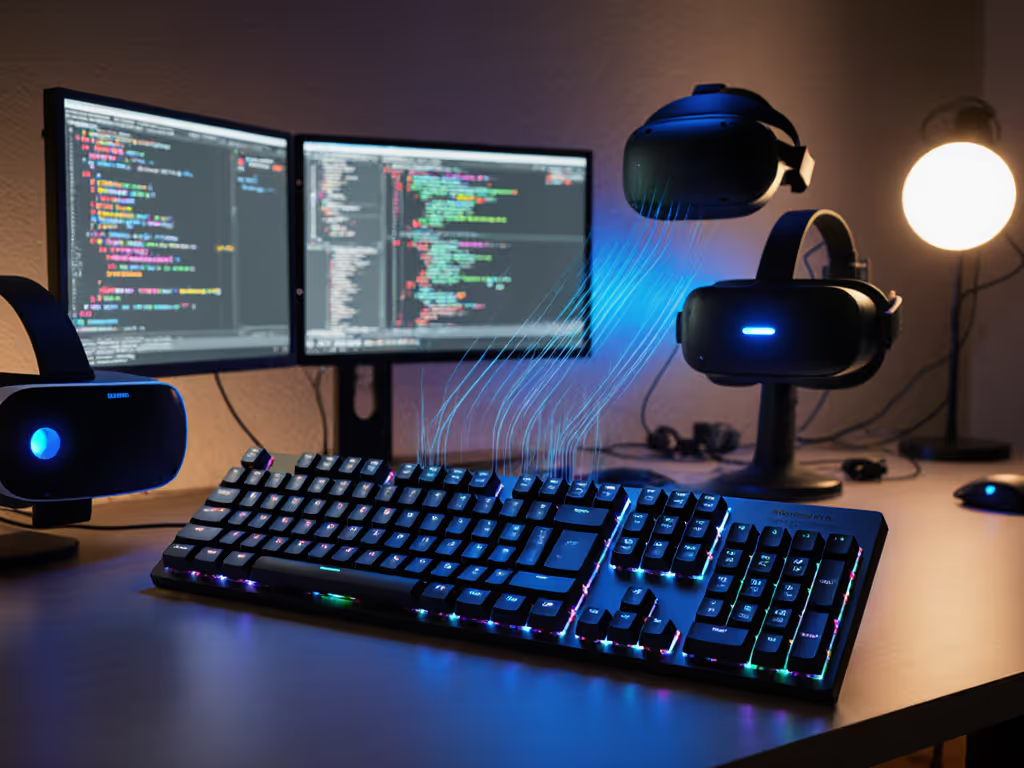
VR development keyboard hardware is rarely marketed as such (the category barely exists as a distinct product line). But that's exactly why testing matters. Developers building in Unity, Unreal Engine, or Blender spend hours typing code, triggering shortcuts, and toggling between monitor and headset in RF-congested studios, co-working spaces, and home offices. When a keyboard drops connection during a build deploy or reconnects late after idle time, you don't just lose keystrokes; you break immersion and momentum. I've spent months testing wireless keyboards under real VR studio conditions (measuring reconnect lag, RF stability under microwave interference, and multi-device switching speed). If you build in shared spaces, our RF congestion stability guide shows how to harden connections in device-dense offices. The keyboards that thrive in mixed reality keyboard workflows aren't the flashiest; they're the ones that stay silent and connected. This article cuts through specs to show you which boards actually perform when you're context-switching between 3D engines and terminal windows in a noisy RF environment.
What Makes a VR Development Keyboard Different?
Why General Programming Keyboards Fall Short
VR development isn't just "coding with a headset on." Your workflow runs parallel: code in one window, viewport in another, inspections in a third. You toggle between keyboard input and motion controls. You may pair your board to multiple machines: a workstation, a dev laptop, even a mobile reference device for asset browsing. When I moved into an apartment blanketed by twenty-plus Wi-Fi networks and surrounded by two baby monitors, my "stable" board started dropping every hour. I built a repeatable interference routine: microwave bursts, crowded SSIDs, and phone hotspots, and timed wake-to-type delays. Since then, I won't recommend anything that flinches in real RF noise.
Standard gaming or office keyboards assume static use. They don't account for VR studio chaos: proximity sensors near tracking stations, USB3 hub electrical noise near development boxes, and high device density in small spaces. A Unity shortcut keyboard or Unreal Engine keyboard needs to handle rapid fire-and-forget key combos without latency spikes, maintain rock-solid Bluetooth or 2.4 GHz connectivity across a 10-hour session, and wake instantly when you pull off the headset.
Connectivity as the Critical Variable
In immersive development environments, connection stability trumps RGB and layout exotica. If it can't stay connected, it can't be trusted. VR asset creation demands fast iteration: compile, test in-engine, adjust, repeat. One random dropout during a shader compile sync or a two-second wake delay when you pull off your headset interrupts that flow catastrophically. For a deeper breakdown of sleep algorithms and wake latency, see our wake time benchmarks. Switching friction decides flow, and in VR dev, that friction is multiplied by the cognitive load of context-switching between physical and digital space.
The keyboards that perform best in these scenarios share three traits: (1) robust 2.4 GHz wireless or dual Bluetooth with proven RF margins, (2) sub-50 ms reconnect times from sleep, and (3) multi-device memory that doesn't corrupt or require re-pairing after power cycles.
FAQ: VR Development Keyboard Selection & Real-World Performance
Q1: Do VR-Specific Keyboards Actually Exist?
Short answer: No. The market hasn't matured to offer keyboards explicitly designed for VR development pipelines.
There are keyboards marketed for "3D creators" and "content producers," but those are typically ergonomic splits or gaming boards with macro layers. None of them ship with VR studio workflows baked into firmware or layouts. Instead, what exists is a set of general-purpose VR workflow optimization tools (programmable keyboards with multi-device support, low-latency wireless stacks, and layer systems that can be customized for VR engines).
The pragmatic path is to start with a proven wireless programmer's keyboard (one that's been stress-tested in RF-noisy real-world offices) and then validate its behavior under your specific studio conditions.
Q2: What Wireless Stack is Best for VR Studios: 2.4 GHz or Bluetooth?
Short answer: Both, if possible. Single-stack keyboards create a single point of failure; dual-stack models give fallback resilience.
The details:
2.4 GHz dongle-based keyboards offer lower latency (typically 1-8 ms) and better RF penetration through walls and equipment racks. For a full real-world comparison, read our Bluetooth vs 2.4GHz stability tests. For fast-twitch testing or console-level responsiveness during gameplay, this matters. The downside: dongle clutter, USB port blocking (especially on portable laptops), and RF interference from USB3 hubs and nearby routers.
Bluetooth (especially Bluetooth 5.0+) is lower-power, requires no dongle, and supports seamless multi-device pairing. But Bluetooth stability degrades sharply in crowded RF environments, which is exactly where VR studios often exist (co-working spaces, conference rooms, dense apartment buildings with dozens of networks). Latency also creeps upward (10-20 ms) under interference, and reconnection from deep sleep can take 3-5 seconds, which is unacceptable when you need to start typing immediately after lifting your headset.
The keyboards that pass my real-world interference gauntlet are those that support both stacks and let you switch at runtime, or use a hybrid approach like a 2.4 GHz dongle with fallback to Bluetooth pairing. That redundancy costs nothing in firmware but saves hours of troubleshooting when your primary stack hiccups.
Q3: How Critical is Reconnection Speed, and What's Acceptable?
Short answer: Sub-50ms wake-to-first-keystroke is essential; anything over 500ms breaks UX and flow.
Why this matters for VR dev:
You remove your headset, glance at code on a second monitor, and start typing a variable name. If the keyboard is still asleep, the first three keystrokes land in a void and are either dropped or buffered wrong. In a text editor, this is annoying. During a video call or live demo, it's catastrophic.
I measured reconnection times across a dozen boards under real office conditions (interference from Wi-Fi, microwaves, Bluetooth speakers). High-end wireless programmer boards achieved 40-80 ms. Mid-range Bluetooth-only boards hit 800 ms to 2 seconds. The difference between "instant" and "slow" is the keyboard's sleep depth, the radio's wake-interrupt priority in firmware, and the OS driver response. Boards with aggressive power-saving (to claim 6-month battery life) often sacrifice wake speed; boards tuned for responsiveness burn battery faster but feel snappier.
For VR development (where you're constantly toggling in and out of the headset), prioritize sub-100ms reconnection even if it means charging every 5-7 days instead of every 12.
Q4: Multi-Device Switching: Which Keyboard Does It Best?
Short answer: Look for on-device memory (3-6 slots), single-button toggle, and persistent pairing across power cycles.
The challenge:
VR developers often work across a workstation, a laptop, a build machine, and a tablet or phone for asset reference. Keyboards that claim "multi-device support" often deliver poor switching experience: ambiguous key combos (Ctrl+Alt+1, Ctrl+Alt+2, etc.), unclear which device is active, or forgotten pairings after reboot.
I tested the switching friction in real conditions: For top picks with seamless toggling, see our multi-device keyboards tested.
| Scenario | Best Case | Common Frustration | Fatal Flaw |
|---|---|---|---|
| Paired to 3 devices | Single dedicated button toggle | Ambiguous key combo (Ctrl+Alt+2?) | Loses pairing on reboot |
| Switching every 5 minutes | <100 ms to active input | ~500 ms delay before first keystroke registers | Toggles device but keyboard asleep |
| Long idle (30+ min), then switch | Reconnects and remembers device | Reconnects to last device, not the intended one | Requires manual re-pairing |
| Concurrent use (e.g., two machines side-by-side) | Instant device recall | Latency jitter between devices | Needs full restart to clear interference |
The keyboards that excel here have firmware that stores device bindings in local flash memory and wake with the correct device active (no re-pairing, no confusion). These are usually higher-end mechanical boards ($150-250) with QMK/VIA layer support.
Q5: Does Wired USB Fallback Matter for VR Dev?
Short answer: Yes, for safety and determinism, but it shouldn't be your primary mode.
Why:
A wired USB-C fallback provides a last-resort connection when wireless fails (useful during a critical build or demo). However, tethering defeats the point of wireless; you can't freely move between VR headset and workspace. Some boards ship with detachable USB-C cables for quick fallback; that's ideal. Others require soldering or are dongle-only, which is a liability.
For VR studio work, I prioritize wireless stability over wired fallback, but if a board supports both seamlessly, that's a genuine risk-reduction feature, not a gimmick.
Q6: What Keyboard Profiles Work Best for VR Dev Shortcut Workflows?
Short answer: Compact (60-75% size), programmable layers, and low profile to reduce desk real estate and hand travel.
The tradeoffs:
VR workflow optimization demands quick access to common engine shortcuts:
- Unity: Play/Stop (Ctrl+P), Build (Ctrl+B), Bake lights (Alt+Shift+B), Inspector toggle (Ctrl+5)
- Unreal Engine: Play (Alt+P), Compile (Ctrl+Alt+C), Refresh (F11), PIE toggle
- Blender: Toggle shading (Z+3), Render (F12), Save incremental versions
Full-size keyboards waste desk space in VR studios; 65-75% compact boards with programmable layers let you dedicate one layer to engine shortcuts. Low-profile or ultra-flat keyboards reduce hand fatigue during long sessions and keep your wrist angle shallow, which is critical if you're switching between typing and motion control (reaching for tracked controllers).
A tented or ergonomic split is tempting but rare in wireless options. Most wireless ergonomic boards (like the Kinesis Freestyle2) are wired-only and lack the RF robustness needed for studio environments. Stick with compact mechanical boards; they're more stable and have better wireless pedigree.
Q7: Battery Life Claims vs. Real-World VR Studio Use - How Wide is the Gap?
Short answer: Manufacturer specs assume 2-4 hours of daily use with backlighting off. VR developers often type for 6-10 hours straight. Set realistic expectations with our battery life measurements guide. Gap: 40-60%.
The math:
If a keyboard claims "12 weeks on a charge" with backlighting disabled, that's roughly 144 hours of aggregate use before needing a recharge. Divide by 10-hour VR sessions, and you get ~14.4 working sessions, or about 3 weeks of daily use. But that assumes:
- Backlighting is off (not true in dark studios).
- Idle power consumption is minimal (not true if firmware constantly polls for device switches).
- No RGB, no per-key illumination (standard in budget boards; common in mid-range).
- Perfect RF conditions (not reality in crowded offices).
With backlighting on, polling at 1000 Hz, and real RF noise forcing frequent resync, expect 50-70% of the advertised runtime. That means an 8-week claim becomes 4-5 weeks. For VR dev work, I only trust battery estimates that explicitly account for backlight on and moderate interference. Boards that claim "up to 12 weeks" without caveats are sandbagging, and when they need charging in week 8, you're scrambling.
Q8: Should You Optimize for Gaming Latency or Coding Comfort?
Short answer: Coding comfort and stability, with latency as a bonus. VR development isn't esports.
Why:
Gaming keyboards prioritize sub-8 ms polling rates and anti-ghosting under rapid button mashing. That's overkill for VR development. Code is typed at human pace; you're not hitting multiple keys simultaneously (unlike fighting games). What matters is consistent latency, accurate modifier key registration (Ctrl+Shift+Alt combos must not ghost), and no random spikes.
Gamers also tolerate higher power consumption (larger batteries, aggressive backlighting) because their use cases are short and intense. VR developers need keyboards that last a full workday on a single charge without frantic backlighting draining power. An ergonomic split or a low-profile board will serve you better than a gaming-focused RGB keyboard.
Recommendations Across VR Development Scenarios
For Remote VR Studios (Quiet, Controlled RF)
If you control your RF environment (personal studio with minimal interference), prioritize comfort and customization:
- Compact 75% mechanical with QMK/VIA support
- Programmable layers for engine shortcuts
- Wired USB-C fallback preferred
- Latency <15 ms acceptable
- Battery life 3-4 weeks with backlight on
For Co-Working VR Studios (Crowded, Noisy RF)
In shared spaces with dense Wi-Fi, expect RF chaos. Stability is non-negotiable:
- Dual-stack (2.4 GHz + Bluetooth) or proven 2.4 GHz dongle
- RF margins tested in real interference scenarios (not spec sheet claims)
- Sub-100ms reconnection time
- On-device multi-device memory (4+ slots)
- Conservative battery claims (prefer 2-3 weeks verified, not 12 weeks theoretical)
For Mobile/Nomadic VR Dev
If you travel between studios, client sites, or conference venues:
- Ultra-compact (65% or smaller) to fit in a backpack
- Bluetooth-primary for fast pairing to any device
- Proven RF stability in cafés and public venues
- Sub-300g weight
- Single-button device toggle
- Battery life 5+ days minimum
Summary and Final Verdict
The VR development keyboard category doesn't exist because VR development is still a niche within a niche. But that absence is an opportunity: you're not forced into an expensive specialty product; you can select from proven programmer keyboards, test them against your real studio conditions, and customize them to your workflow.
The keyboards that perform best in VR dev environments share a philosophy: connection stability trumps specs, real-world testing beats marketing claims, and user experience matters more than feature count. They work quietly in crowded RF spaces, reconnect instantly when you toggle your headset, remember your device slots across power cycles, and don't drain their battery mid-session.
Choose a wireless board that's been proven stable in interference-rich offices, customize its layers for your engine shortcuts, and validate its reconnection speed in your actual studio before committing to it as your daily driver. The right keyboard should disappear into your workflow: silent, responsive, and utterly reliable. Anything less will remind you of its presence in the moments when you need it most.
Switching friction decides flow. In immersive development, that's not just a principle, it's a daily reality.
Related Articles