Best Multi-Monitor Wireless Keyboards With Customizable Angles
By Elena Novák • 10th May
Introduction: Why Customizable Angles Matter Across Multi-Monitor Workflows
Multi-monitor wireless keyboards aren't luxury peripherals, they're critical infrastructure when your workspace spans two, three, or four screens. The problem isn't just connectivity; it's positioning. A keyboard locked at a single angle works fine for a single monitor dead-ahead. But the moment you add a secondary display at a different height, or you're standing at one desk and sitting at another, that fixed angle becomes a pain point.
A fixed-angle keyboard forces your wrist into compensation. For deeper context on optimal tilt and wrist neutrality, see our keyboard angle ergonomics guide. Add a standing desk into the mix, and suddenly your keyboard angle changes throughout the day. This is where customizable angle keyboards become non-negotiable, especially if they're wireless and need to work reliably across your multi-device ecosystem.
I learned this the hard way. Years ago, during a stand-up demo in front of stakeholders, I was demoing code on a dual-monitor setup. My keyboard was mounted at a fixed angle that worked fine sitting down. Standing, my wrist angle was wrong. Three minutes in, my keyboard lost Bluetooth connection to my laptop (likely a combo of bad positioning, signal interference, and my own stress). I waited. Ten awkward seconds later, it reconnected. Too late. The point was lost, and so was my credibility for those ten seconds. That gap (that silent drop) taught me something: when you're juggling two monitors and multiple contexts, every millisecond and every degree of adjustment matters.
Since then, I've tested dozens of wireless keyboards across Linux, macOS, and Windows machines. I've mapped how quickly they switch between devices, how positioning affects both signal reliability and wrist strain, and which boards give you the flexibility to adapt without sacrificing stability. This guide walks you through the exact steps to find and configure a wireless keyboard that works across your multi-monitor, multi-OS life.
Step 1: Map Your Multi-Monitor Geometry and Ergonomic Baseline
Before you evaluate a single keyboard, you need to understand your physical setup.
Preconditions: You have access to your desk or workspace for the next 15 minutes. You have a ruler or measuring tape.
Document Your Monitor Configuration
- Measure your primary monitor height: Locate the center of the screen. Measure from the floor to that center point. Ideal viewing angle puts the top of the primary monitor at or slightly below eye level when seated. Note this height.
- Measure secondary monitor(s): If you have a second or third display, measure their heights. Are they aligned with the primary? Offset higher (for reference material) or lower (for chat/comms)?
- Document horizontal spacing: Measure the horizontal distance from your primary monitor's center to each secondary monitor. Are they at wide angles (>30° from center) or tight clusters?
- Note your desk surface and keyboard placement: Where does your keyboard sit relative to your monitors? Is it centered under the primary monitor, or offset? How far is it from your body?
Establish Your Seated and Standing Posture Targets
If you use a standing desk, this step is critical.
- Seated: Measure the angle of your forearm to your desktop. Neutral is roughly 90° at the elbow. Your wrist should be straight, not bent up or down.
- Standing: Remeasure. Standing desks typically sit 4-6 inches higher. Your forearm angle and wrist should remain neutral. If your keyboard can't tilt, you'll be forced to extend your wrist upward (the source of repetitive strain over hours).
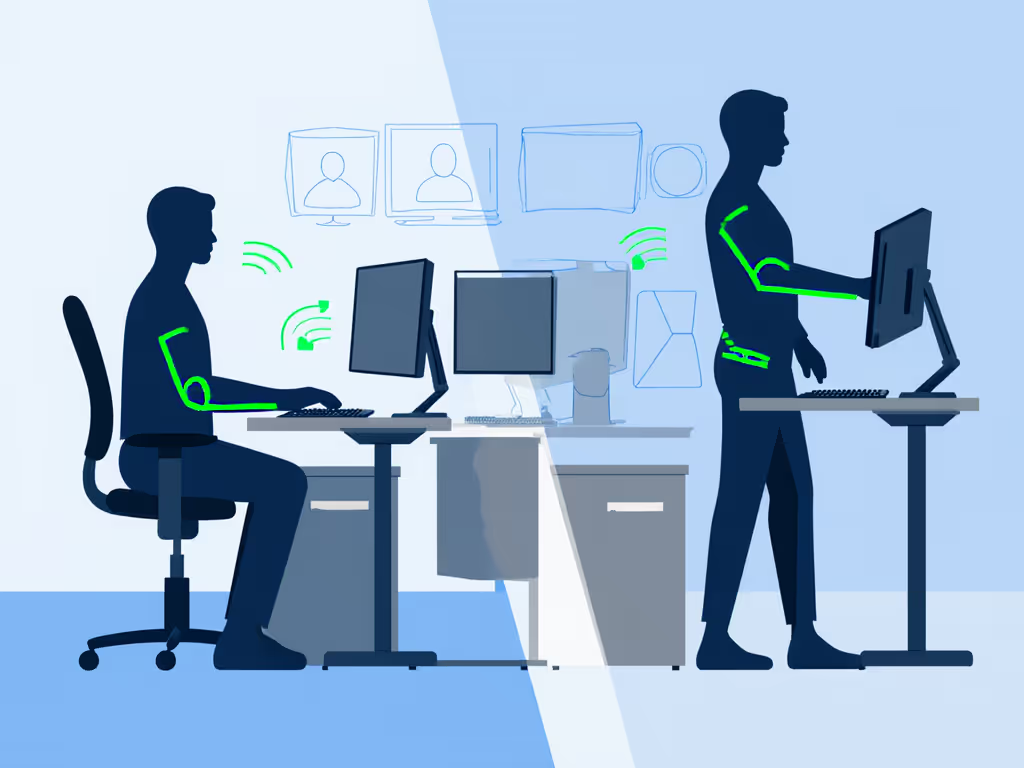
Defaults matter. The default angle a keyboard ships at is often a compromise that works for nobody optimally, it's just a mid-range default. Document your two target angles now: one for seated work, one for standing. This becomes your filter criterion.
Step 2: Define Your Wireless Connectivity Baseline
Multi-monitor wireless keyboards operate in one of three modes: Bluetooth multipoint, 2.4 GHz dongle, or (increasingly) a hybrid stack. If you're choosing between radios, start with our Bluetooth vs 2.4GHz stability comparison. Your multi-monitor, multi-device workflow likely means you're switching between a work laptop, a personal machine, and possibly tablets or phones. Each adds RF noise to your environment.
Inventory Your Devices and Expected Switching Patterns
- List all devices you'll pair: work laptop (OS), personal laptop (OS), tablet, phone, etc.
- Estimate daily switches: How many times do you switch focus per day? For coders and remote workers, expect 15-30 switches. For creative professionals, it might be 5-10.
- Document your RF environment: Are you in an open office (heavy Bluetooth/WiFi noise), a home office, or a shared co-working space? Each affects dongle vs. Bluetooth choice.
Establish Connection Stability Metrics
You'll measure three things:
- Wake latency: How long from keypress to first character appearing on screen, measured in milliseconds. Target: <100 ms. Anything >200 ms breaks flow.
- Device-switch latency: Time from initiating a device switch (usually a key combo) to successful input on the new device. Target: <5 seconds. I've timed keyboards that took 15+ seconds, unacceptable for fast context switches.
- Connection stability: Over an 8-hour workday, how many unexpected disconnects? Benchmark: zero is the only acceptable answer. One disconnect during a video call? Disqualifying.
Step 3: Evaluate Angle Customization Mechanisms
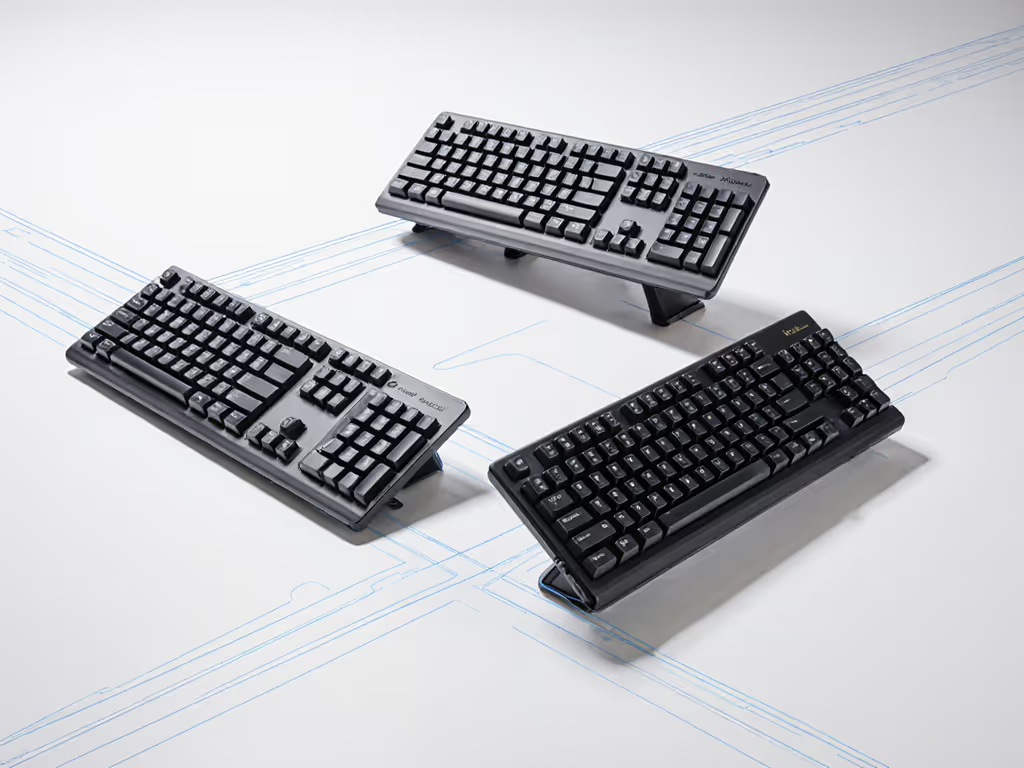
Not all customizable-angle keyboards are equal. Some offer adjustable feet; others have magnetic plates; still others use split designs. Your multi-monitor workflow determines which mechanism works.
Mechanism Types and Multi-Monitor Suitability
Adjustable Feet (Most Common)
- Plastic or rubber feet that can be raised or lowered, usually in 1-3° increments.
- Pros: Simple, no moving parts, stable once set.
- Cons: Range often limited to 0-6°. If your standing desk is 6 inches higher than your seated desk, you might need more adjustment.
- Multi-monitor fit: Good if your monitor heights are consistent. Less useful if you frequently adjust monitor heights.
Magnetic Angle Plates
- Board sits on a magnetized base that can be repositioned at preset angles (typically 0°, 3°, 6°, 9°).
- Pros: Quick switching between presets; good for standing/sitting transitions.
- Cons: Only works at preset angles; magnets can weaken over time; adds bulk.
- Multi-monitor fit: Excellent if you have two fixed working modes (seated, standing). Less useful if angles need micro-adjustment.
Split or Tented Designs
- Left and right halves can be angled independently, or the entire board has a tented profile.
- Pros: Reduces wrist deviation, especially across multiple monitor angles.
- Cons: Fewer options in wireless, especially with multi-device support.
- Multi-monitor fit: Ideal for ergonomic multi-monitor setups; limited availability in reliable wireless options.
Test Angle Adjustment Under Multi-Monitor Conditions
If you're evaluating a keyboard:
- Place it on your primary monitor's desk line. Set it to your seated target angle from Step 1.
- Type for 5 minutes on typical tasks (emails, code, docs). Does your wrist feel neutral? Any strain at the base of the thumb or in the forearm?
- Adjust to your standing angle. Repeat the test.
- Test at extreme angles (minimum and maximum tilt). Does stability suffer? Does the keyboard slip or rock on your desk?
- If multi-monitor: Place your keyboard offset toward one monitor, then the other. Does the angle support both positions, or do you need to readjust?
Step 4: Verify Cross-Platform Device Switching and Remapping Support
Here's where many wireless keyboards fail. If you need product recommendations that excel at switching, check out our multi-device keyboard picks. They connect to multiple devices, but the key mappings, layers, and profiles don't persist across OS boundaries. A modifier key that works on macOS defaults differently on Windows and Linux. Function row behavior is a nightmare. And if you're a coder or power user, you need layer support across platforms.
Preconditions for This Test
You have access to at least two of: a macOS device, a Windows device, and a Linux device. If you only have one OS, skip to "Document Your OS Constraints" below.
Test 1: Default Modifier Behavior
- Connect the keyboard to your Mac (or primary OS).
- Open a text editor and test:
- Cmd + C (copy), Cmd + V (paste)
- Cmd + Z (undo)
- Cmd + Tab (switch apps)
- Switch to Windows or Linux via the keyboard's device-switch mechanism.
- Open the same text editor and repeat, but using Ctrl instead of Cmd.
- Log the result: Does the keyboard auto-map modifiers, or do you need to manually remap? Does the mapping persist, or reset on reconnect?
Cross-platform notes: Many wireless keyboards lack cross-OS remapping. This forces you to learn two keymaps. If the keyboard supports QMK or VIA firmware, you can custom-map on-device. If it only supports the vendor's app, check whether the app exists for all your OSes.
Test 2: Function Row and Layer Support
- On your primary OS, press F1. What happens? Does it trigger Help, or does it pass F1 through to your app?
- Check if the keyboard has layers (usually toggled with Fn + Layer key). Can you access different function layouts without software?
- If software is required: Download the vendor's app for each OS and test whether layer configs sync between devices or reset per-connection.
Document Your OS Constraints
If you're single-OS (e.g., all Windows or all macOS):
- Cross-platform remapping isn't critical, but layer support still is.
- Verify that the keyboard supports persistent on-device profiles (memory) for different layouts. Avoid keyboards that require software to be running to apply mappings.
If you're multi-OS:
- Prioritize keyboards with transparent, open-source firmware (QMK, ZMK) or vendor support for all three major OSes.
- Test whether the same profile works across OSes, or if you need separate profiles per device.
Test 3: Device-Switch Latency and Clarity
This is where your earlier wake-latency work pays off.
- Pair the keyboard to at least two devices in the order you typically switch.
- Establish your device-switch key combo. Most boards use Fn + number (e.g., Fn + 1 for device 1) or a dedicated multi-device button.
- Switch from device A to device B. Measure time from button press to first character appearing on screen. Repeat 5 times and average.
- Log the result and any feedback from the keyboard: Does it beep? Flash an LED? Or is the switch silent and ambiguous?
- Repeat for each device pair in your ecosystem.
Target: <5 seconds per switch, with clear visual or audio feedback. Anything slower disrupts your flow. Anything ambiguous leads to typos on the wrong device.
Step 5: Battery Life and Real-World Runtime Testing
Battery claims on spec sheets are lies. Get realistic expectations with our battery life measurements guide. A keyboard rated "up to 100 hours" might mean 100 hours with backlighting off, in a lab, with minimal typing. In your multi-monitor, always-on-the-desk setup with moderate RGB lighting and active switching, expect half that.
Establish Your Baseline Usage Pattern
- Document your daily typing volume: Rough estimate of keystrokes. (Coders: 10,000-20,000/day. Writers: 15,000-30,000/day. Office workers: 5,000-10,000/day.)
- Note your backlighting preference: Always off, auto-dim, or on 24/7?
- Estimate device-switching frequency: From Step 2, you counted this. Each switch uses power (Bluetooth or RF radio wakeup).
- Define your recharge cadence: Can you recharge weekly, or do you need 2+ weeks between charges?
Real-World Battery Test Protocol
If you're evaluating a keyboard:
- Charge it fully and record the timestamp.
- Use it normally for your typical day: typing, device switches, backlighting at your normal level.
- Don't charge it for 7 days. Log any low-battery warnings.
- On day 7, measure remaining charge using the keyboard's battery indicator or software.
- Extrapolate: If it has 50% charge left after 7 days, it runs ~2 weeks on a full charge. If it's at 10%, it runs ~1 week.
Cross-platform note: Some keyboards report battery status only via Windows or macOS apps. If you switch OSes, you may lose visibility into battery level. Prioritize boards with hardware battery indicators (LEDs or small screens) that work cross-platform.
Step 6: Configure Your Keyboard for Multi-Monitor Positioning and Workflows
Once you've selected a keyboard, configuration is step 1 of turning it into a tool that disappears into your workflow.
Precondition: You have your keyboard physically in your workspace.
Configuration Checklist
6a. Set Angle for Your Primary Working Mode
- Return to your seated or standing baseline from Step 1.
- Adjust the keyboard angle to your target. Lock it in place (if magnets, ensure good contact; if feet, ensure they're seated on the desk).
- Type a paragraph of regular text to confirm wrist neutrality. No strain?
- Repeat for your alternate mode (if standing/sitting). Choose a toggle or preset that works for both. If you need to manually readjust between modes, that's okay, just document the target angles.
6b. Program Device Shortcuts and Layers
- Open the keyboard's software (if required) or access on-device programming via Fn key combos.
- Define your device shortcuts: Fn + 1 for work laptop, Fn + 2 for personal laptop, etc. Make sure the assignment matches your physical desk layout (e.g., if your work laptop is on the left, Fn + 1 should trigger the leftmost device slot).
- Test each shortcut on the target device. Confirm zero-lag input appears.
- If the keyboard supports layers: Program a dedicated layer for each OS if needed. Example:
- Layer 1: macOS with Cmd-based shortcuts.
- Layer 2: Windows with Ctrl-based shortcuts.
- Layer 3: Gaming (no layers, responsive polling).
- Save and lock your config. Ensure it persists on device (on-device memory) so it survives unplugging, app closures, and OS updates.
6c. Optimize Backlighting and Wake Behavior
- Disable or dim backlighting if you're in a bright environment (saves battery, improves focus).
- Set auto-sleep timer: Most wireless keyboards auto-sleep after 10-30 minutes of inactivity. Test what feels natural; too aggressive and you'll experience wake lag; too lenient and you'll drain battery during idle periods.
- Check wake responsiveness: Press a key after 30 minutes of sleep. Measure the delay to first character. If >500 ms, adjust auto-sleep settings or consider this a dealbreaker for your workflow.
Multi-Monitor Positioning Best Practices
Defaults matter. The default position many people use (dead-center, far from both monitors) creates ergonomic compromises. Instead:
- Offset toward your primary working monitor if you have an asymmetric setup. Reduce wrist extension to that screen.
- If your monitors are angled: Position the keyboard so your arms form a neutral angle toward the midpoint.
- Test secondary monitor work: Spend 30 minutes working primarily on your secondary monitor (reference docs, chat, etc.). Does the keyboard position strain your wrist? If yes, consider rotating the keyboard slightly or moving it.
- Document your final position: Take a photo or measure the offset from your primary monitor center. This helps if you ever need to rebuild the setup.
Step 7: Test Under Actual Working Conditions
Lab tests mean nothing if your keyboard fails in real conditions. Run this final validation over your next 5 working days.
5-Day Validation Protocol
Day 1-2: Standard Workday
- Use your multi-monitor setup as you normally would (email, docs, messaging, coding if applicable).
- Log any issues: missed keystrokes, lag, unexpected disconnects, angle discomfort.
- Target: Zero issues.
Day 3: Heavy Switching Day
- Intentionally switch between your paired devices every 15 minutes. Time each switch.
- Measure average device-switch latency. Compare to your benchmark from Step 4.
- Check battery level at end of day.
Day 4: High-RF-Noise Environment (if applicable)
- Work in a location with heavy WiFi/Bluetooth interference: café, open office, co-working space.
- Log connection stability. Any dropouts or lag?
- This is the test that fails keyboards with poor RF isolation. For dense offices and schools, see our guide to mitigating RF congestion for keyboards.
Day 5: Mixed OS Workflow
- If multi-OS: Spend a day primarily on your secondary OS.
- Test all layer switches, modifier remapping, and device switching.
- Confirm configs persist and behave predictably.
Acceptance Criteria
After 5 days, the keyboard passes if:
- Zero unexpected disconnects.
- Average device-switch latency <5 seconds with clear feedback.
- Wake latency <100 ms consistently.
- No wrist strain or angle-related discomfort.
- Battery level >50% (for weekly recharge cycles).
- All layers, device shortcuts, and OS mappings work as configured.
If any criterion fails, troubleshoot:
- Angle discomfort? Adjust by 1-2° and retry.
- Disconnects? Move away from RF sources or switch Bluetooth channel (if the keyboard supports it).
- Latency issues? Ensure the keyboard's firmware is up-to-date and no competing software is hogging USB bandwidth.
- Battery drain? Disable RGB, reduce polling rate, or confirm auto-sleep is working.

Conclusion: From Setup to Disappearing Workflow Tool
A wireless keyboard that works seamlessly across your multi-monitor, multi-device ecosystem doesn't just improve productivity; it removes friction from your day. When a keyboard's angle matches your desk, its connectivity is reliable, its switches are instant, and its layers align with your workflow, it stops being a tool you think about and becomes part of your mental model of work.
The keyboards that pass all seven steps share common traits: transparent or open firmware, reliable multi-device support with clear switching, honest battery claims, and thoughtful ergonomic design. They're not the cheapest options, but they're the ones that actually stay out of your way.
Your Actionable Next Steps
-
This week: Complete Steps 1 and 2. Map your multi-monitor geometry, define your target angles, and inventory your devices. You now know your constraints.
-
Document and prioritize: Create a checklist of must-haves (e.g., "supports 4+ devices," "works on macOS and Windows," "adjustable to 9°+ tilt"). Non-negotiables filter noise.
-
Source keyboards that match: Search for wireless boards with the features you've identified. Prioritize boards with transparent firmware (QMK, ZMK) or vendor support for cross-OS remapping. Read user reviews specifically for multi-device reliability (that's where weak boards show their flaws).
-
Acquire and test one: Order a candidate keyboard and run Steps 3-7 over a week. Document results.
-
Iterate if needed: If it doesn't pass, adjust angle expectations, swap connectivity types (Bluetooth for 2.4 GHz dongle, or vice versa), or retry a different board.
Defaults matter. The default keyboard off the shelf won't be right for your multi-monitor, multi-OS life. But once you've customized angle, connectivity, and workflow mapping, you'll stop noticing the keyboard at all (and that's the goal). Workflow first; the keyboard should get out of the way.
Related Articles